
Google Merchant Center: from 31 January 2027, every product image needs at least 500 × 500 pixels
Short answer: From 31 January 2027, product images in Merchant Center must be at least 500 × 500 pixels, across all product categories and all countries. If the main image (image_link) is smaller, the product is disapproved. Undersized additional images are not shown. Merchant Center shows which items are affected under "Products" in the issue for images that are too small. Google recommends around 1500 × 1500 pixels.
What changes
Until now, Merchant Center had low minimums: 100 × 100 pixels for most products and 250 × 250 pixels for apparel. That distinction goes away. From 31 January 2027, one rule applies to every category:
Requirement | Until 30 January 2027 | From 31 January 2027 |
Minimum size, apparel | 250 × 250 pixels | 500 × 500 pixels |
Minimum size, all other products | 100 × 100 pixels | 500 × 500 pixels |
Google's recommendation | – | around 1500 × 1500 pixels |
Main image too small | Warning | Product disapproved |
Additional image too small | Image not shown | Image not shown |
In detail:
At least 500 × 500 pixels. Both sides must meet it. An 800 × 450 image fails.
Around 1500 × 1500 pixels is recommended, so the image looks sharp in every ad format.
No more than 64 megapixels and 16 MB per image file.
The main image decides approval. If the image in
image_linkis too small, the product is disapproved. Undersized additional images inadditional_image_linkdo not cause disapproval, but Google does not show them.Applies to all marketing methods: Shopping ads, Performance Max, free listings. YouTube Shopping ads only serve on YouTube TV with images of at least 500 × 500 pixels.
Google announced the change in April 2026 in its annual product data specification update and started emailing merchants in August 2026. Since then, Merchant Center has been showing warnings. From the deadline, products with an undersized main image are disapproved.
Does this apply in every country?
Yes. The requirement is part of Google's global product data specification. There are no country exceptions. If one Merchant Center account serves several countries, for example Germany and Switzerland, the images have to be fixed for all target countries.
Which products are affected: how to check in Merchant Center
Merchant Center already lists the affected items. Labels may differ slightly depending on interface language:
In the left navigation, open "Products & store" → "Products".
In the issue list, find the image size issue ("Image too small …") and click it.
The "Issue details" page shows under "Impact" how many products are affected and what share of your catalogue that is, plus the trend over the last 28 days. Use the selector (e.g. "All for online store") to filter by marketing method.
Use "Download affected products" to export the full list with product IDs. That list is the basis for everything that follows.
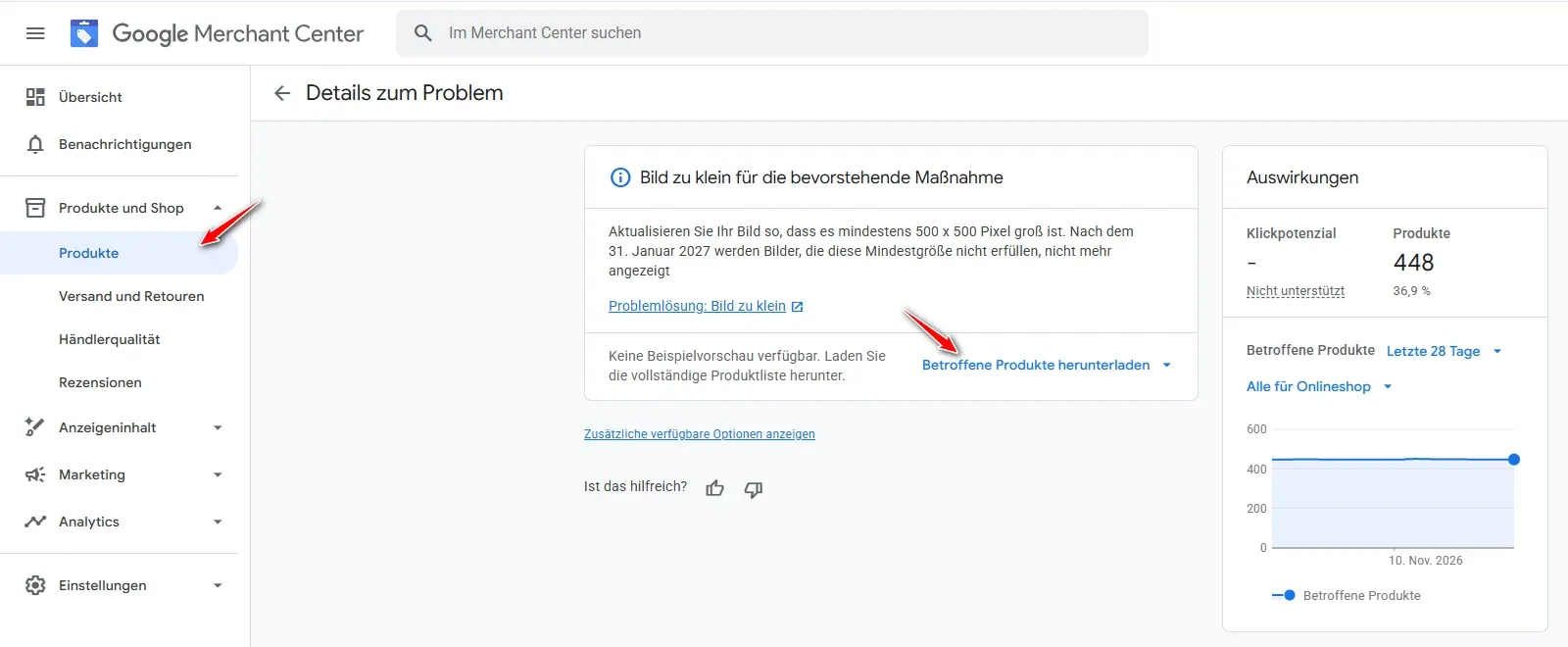
The screenshot from a store arboro is responsible for shows how big the problem can get: 448 products affected, 36.9% of the catalogue. Without a fix, more than a third of the items would drop out of Google Shopping in February.
How much revenue is at stake
A third of the products does not automatically mean a third of the revenue. What matters is which items are affected. In Google Ads, the product view of your Shopping and Performance Max campaigns shows clicks, cost and conversion value per item ID. Match this report against the Merchant Center list, for example with VLOOKUP in Excel or Google Sheets. You then see what share of your Shopping revenue depends on the affected products and which items to start with.
Look at the list before anyone starts reshooting photos. If almost every product is affected even though the images look sharp in the store, the cause is almost always the feed, not the photos.
The most common causes
The feed sends a thumbnail instead of the original. Store systems create several smaller versions of every image. If the feed picks one of them, Google receives a small version even though a large original sits in the store.
The originals are too small. Typical cases are older products, manufacturer images from early data imports, or images that a plugin shrank on upload.
The images are not square. A wide 1000 × 400 image is large but fails on height.
The image format is not supported. Google accepts JPEG, WebP, PNG, GIF, BMP and TIFF. If a CDN or plugin automatically serves AVIF, Google cannot process the image.
Additional images get overlooked. Detail shots or graphics in the additional images are often smaller than the main image.
Check image sizes yourself, without waiting for Google
Merchant Center only shows changes after 24 to 72 hours. A short Python script is faster. It loads every main and additional image from your feed and lists all images below 500 pixels as well as images that cannot be reached (for example HTTP 404). Save it as imagecheck.py and run python imagecheck.py feed.xml:
import io, sys, requests
import xml.etree.ElementTree as ET
from PIL import Image

NS = {"g": "http://base.google.com/ns/1.0"}

def check(pid, art, url):
    try:
        r = requests.get(url, timeout=20)
        if r.status_code != 200:
            print(pid, art, f"HTTP {r.status_code}", url)
            return
        w, h = Image.open(io.BytesIO(r.content)).size
    except Exception as e:
        print(pid, art, "ERROR:", e, url)
        return
    if w < 500 or h < 500:
        print(pid, art, f"{w}x{h}", url)

for item in ET.parse(sys.argv[1]).iter("item"):
    pid = item.findtext("g:id", namespaces=NS)
    check(pid, "main", item.findtext("g:image_link", namespaces=NS))
    for el in item.findall("g:additional_image_link", NS):
        check(pid, "additional", el.text.strip())
The script needs the requests and Pillow packages. Each output line shows product ID, image type, size or error, and the URL. It lets you check every feed change immediately, before Google processes it.
Quick fix without coding: rules in Merchant Center
If the feed sends thumbnails although large originals exist, you can often fix that directly in Merchant Center. An attribute rule with "Find & Replace" swaps the size in the image_link attribute, for example _400x400 for _1920x1920. This requires the "Advanced data source management" add-on in Merchant Center. Use the rule testing feature on a few products to check that the new URLs point to existing images.
If you have stored new images somewhere else, a supplemental data source helps: a table with product ID and new image URL. Merchant Center then overrides image_link for exactly those products, and the main feed stays unchanged.
Both routes are a quick lever until the deadline. The clean long-term fix is still a correct feed from the store.
Will Google fix it automatically? Only partly
Google has announced that it will automatically optimise some undersized images so that the affected products are not disapproved. Merchant Center marks those images with a separate notice. Google has not published which images it optimises automatically and which are still disapproved.
There are also automatic image improvements in Merchant Center. They are turned off by default and can be switched on in the settings for automatic improvements.
Our recommendation: switch the feature on, but do not rely on it. You do not know which products it covers, and you have no control over how the optimised images look. Your own images in a sufficient size remain the safe solution.
How to fix it in Shopware 6
1. Check the image URL in the feed
Open a product from the downloaded list in your feed and load the image URL in a browser. If the path contains /thumbnail/ and a size such as _400x400, the feed is sending a thumbnail. Depending on configuration, Shopware generates thumbnails in sizes such as 400, 800 or 1920 pixels.
2. Adjust the product export template
For feeds built with Shopware's product export (sales channel "Product comparison"), the image output lives in the Twig template. Send the original image instead of a thumbnail:
<g:image_link>{{ product.cover.media.url }}</g:image_link>
{% for productMedia in product.media|slice(0, 10) %}
  {% if productMedia.id != product.coverId %}
    <g:additional_image_link>{{ productMedia.media.url }}</g:additional_image_link>
  {% endif %}
{% endfor %}
For the additional images, the product's media association must be loaded in the export. If you use a feed tool such as ChannelPilot or a feed plugin, check which image field is mapped there and switch it to the original.
3. Find originals that are too small
Shopware stores the width and height of every image in the database. One query lists all product images below 500 pixels:
SELECT m.file_name,
       JSON_EXTRACT(m.meta_data, '$.width')  AS width,
       JSON_EXTRACT(m.meta_data, '$.height') AS height
FROM media m
JOIN product_media pm ON pm.media_id = m.id
WHERE JSON_EXTRACT(m.meta_data, '$.width')  < 500
   OR JSON_EXTRACT(m.meta_data, '$.height') < 500;
Compare the result with the Merchant Center list. That shows which items need new images and which only need a feed fix.
4. Replace images and regenerate thumbnails
Replace undersized originals with larger files: new photos, current manufacturer images or high-resolution data from the PIM. Then regenerate the thumbnails (bin/console media:generate-thumbnails) so the store shows the new images too.
5. Check plugins
Some image optimisation plugins shrink images on upload. Check the maximum image size in their settings so new products are not created with undersized images again.
How to fix it in Shopware 5
Shopware 5 has not received regular updates since summer 2024, but many stores still run on it reliably. The new image size can be handled there too. The process is similar to Shopware 6; the settings just have different names.
1. Check the thumbnail index in the product export
In Shopware 5 product exports (Marketing → Product exports), the image URL comes from the Smarty modifier image. The number after it selects a thumbnail size from the "Article" album:
<g:image_link>{$sArticle.image|image:2|escape}</g:image_link>Many older feed templates use a small index and therefore send 200- or 600-pixel thumbnails. Which size sits behind which number depends on the album settings. Check the URL in the generated feed: the size is in the file name, for example _1280x1280. Switch the index to the largest thumbnail. Additional images come from the articleImages modifier, where you can also choose the thumbnail size.
2. Check the thumbnail sizes in the album
Under Content → Media manager, the settings of the "Article" album list the thumbnail sizes. If none is 500 pixels or larger, add one, for example 1500 × 1500. Then regenerate the thumbnails (php bin/console sw:thumbnail:generate). This only helps if the originals are large enough.
3. Find originals that are too small
Shopware 5 stores the dimensions of every image in the s_media table:
SELECT m.name, m.width, m.height
FROM s_media m
JOIN s_articles_img i ON i.media_id = m.id
WHERE m.width < 500 OR m.height < 500;
These images need a larger file. How to do that for thousands of images without manual work is covered in the next section.
4. Plan ahead
The image size is a good moment to think about the next step. If you are touching every product image anyway, you can prepare them right away for a migration to Shopware 6 or Shopify.
How to fix it in Shopify
1. Check the original size
Shopify serves images through its own CDN and can generate any size on the fly. The URL therefore does not reliably tell you how large the original is: a parameter like ?width=1000 does not enlarge a small original. You can see the real size in the admin under "Content → Files", or for larger catalogues via the Admin API, which returns the width and height of every product image.
2. Check the feed source
Check which image URL your feed solution sends to Google. The "Google & YouTube" app reaches its limits when a store serves several languages or domains, for example a German store and a Swiss store. For setups like that, a feed tool such as ChannelPilot is the better choice. Make sure the image field points to the original, not a resized variant.
3. Replace images
On Shopify, the cause is usually undersized originals. Upload larger files and check the variant images as well: every colour variant needs its own image in a sufficient size.
10,000 images at 400 × 400 pixels: the batch solution
Nobody re-uploads 10,000 images by hand. Most of the process can be automated, in four steps:
1. Narrow down the affected images
Only process images that are actually too small. Start from the Merchant Center list and the database query from your store system, and begin with your best-selling products.
2. Upscale with AI
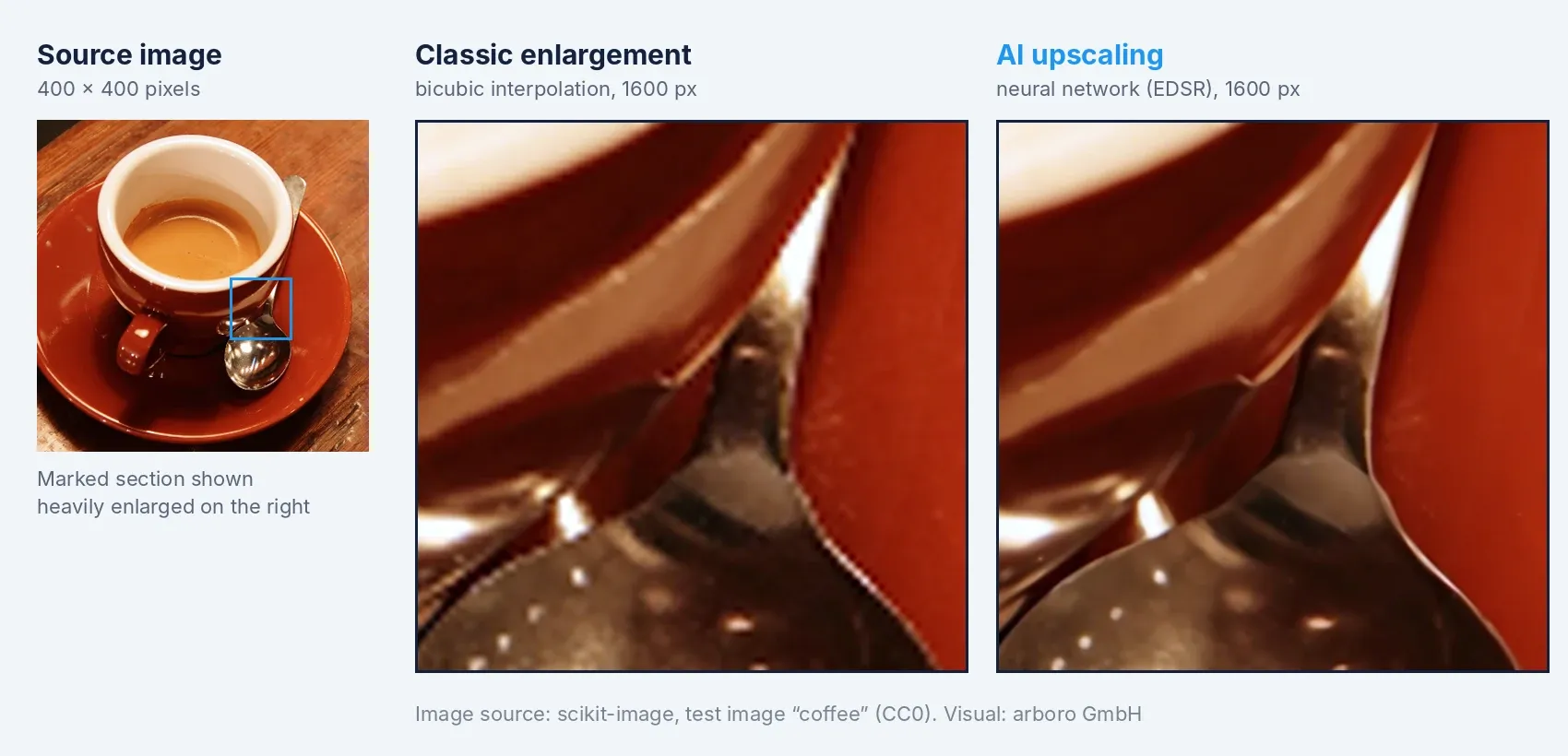
Modern AI upscalers reconstruct edges and textures instead of simply enlarging pixels. Aim for 1000 to 1500 pixels rather than 500, which for 400-pixel images means a factor of 3 to 4. The difference is clearly visible, especially on edges and curves:
There are three routes for large volumes:
Google Product Studio: In Merchant Center, the "Increase resolution" feature upscales individual images with one click. For large volumes, Google offers the same function via the Merchant API (method
UpscaleProductImage, currently in alpha).Open-source tools such as Real-ESRGAN or Upscayl process entire folders on your own machine, without sending images to third parties.
Image APIs from providers such as Cloudinary or Claid.ai, if processing should plug into an existing image pipeline.
3. Spot-check and label
AI upscalers like to invent details in lettering, logos and fine patterns. Check a sample and specifically look at products with text on the packaging. Then label the images in their metadata. For AI-generated images, Google requires the IPTC field DigitalSourceType with the value trainedAlgorithmicMedia. For images edited with AI, the IPTC standard provides the value compositeWithTrainedAlgorithmicMedia. exiftool sets it for a whole folder in one go:
exiftool -overwrite_original -r \
  -XMP-iptcExt:DigitalSourceType="http://cv.iptc.org/newscodes/digitalsourcetype/compositeWithTrainedAlgorithmicMedia" \
  ./upscaled
Product Studio sets the label itself. All that matters then is that your store or an image optimisation plugin does not strip the metadata again.
4. Write back automatically
The new files go into the store via script, not by hand.
Shopware 6: The Admin API replaces the file of an existing media entity (
POST /api/_action/media/{mediaId}/upload) and accepts a new file name. Product assignments stay intact. Then regenerate the thumbnails and check in the feed that the image URL has changed.Shopware 5: A script uploads the new images under new file names, for example via the REST API, and assigns them to the articles in place of the old ones. Then regenerate the thumbnails.
Shopify: Images can be replaced via the Admin API or with an import app such as Matrixify using a list of image URLs.
For thousands of images, Google recommends submitting the new URLs gradually, around 10% per day, so they are crawled continuously.
Fastest option, feed only: Store the upscaled images separately and send them only in the feed. The feed tool, the feed template or a supplemental data source in Merchant Center matches them by product number. The store stays unchanged and the products stay visible on Google. The downside: your customers still see the small images in the store.
What to avoid
Enlarging images mechanically. An image stretched in an editor meets the number but looks blurry. Google advises against simply scaling up small images or submitting thumbnails. AI upscaling gives much better results but needs checking and labelling.
Adding borders. Padding a small image out to 500 × 500 pixels violates the image policies. The product should fill 75 to 90 percent of the image.
Unlabelled AI images. Images enlarged or generated with AI must be labelled in their metadata (IPTC DigitalSourceType), and that label must not be removed later.
Timeline to the deadline
New photos, manufacturer requests and feed changes take time, and after every change it takes 24 to 72 hours for Merchant Center to show the new state. If the image URL stays the same, it can take up to six weeks. A sensible order:
Now: download the affected products in Merchant Center and identify the cause (feed or original image).
By mid-December: switch the feed template or feed tool to original images.
By mid-January: replace undersized originals, starting with your best-selling products.
End of January: check Merchant Center again. The issue should be gone.
Stores with a large number of affected items should not wait until January. Disapproved products drop out of every Shopping format, including Performance Max campaigns, and cost revenue from day one.
Sources

Frequently asked questions
From 31 January 2027. Until then, Merchant Center shows warnings. After that, affected products are disapproved.
Yes, in all countries. The requirement is part of Google's global product data specification. There are no exceptions for individual countries.
For approval, yes. Undersized additional images do not cause disapproval, but Google does not show them. So the goal should be every image in a sufficient size.
They are disapproved. That affects Shopping ads, Performance Max and free listings.
With AI, yes, with checks and labelling. Images that are simply stretched look blurry, and Google advises against that. AI upscalers such as Google's own Product Studio give much better results. The images must be labelled in their metadata, and a sample should be checked.
Partly. Google automatically optimises some undersized images and marks them in Merchant Center. Which images qualify has not been published. Your own images in a sufficient size remain the safe solution.
With a new image URL, usually 24 to 72 hours. If the URL stays the same and only the file is swapped, Google says it can take up to six weeks. So always add new images under a new file name.
Have your Merchant Center checked before your products are disapproved
In the free SEA analysis with presentation, the arboro SEA team checks which products are affected, where the images come from and how your feed is set up. For Shopware and Shopify, and on request arboro implements the fixes directly.